
Transactions
Every rupee in or out is a transaction: a date, a payee, a category and an amount.
Adding one
You can add a transaction from two places.
From anywhere: click Add at the top right of the window (or press Ctrl+Shift+N). Pick the account, fill in the rest and click Save.
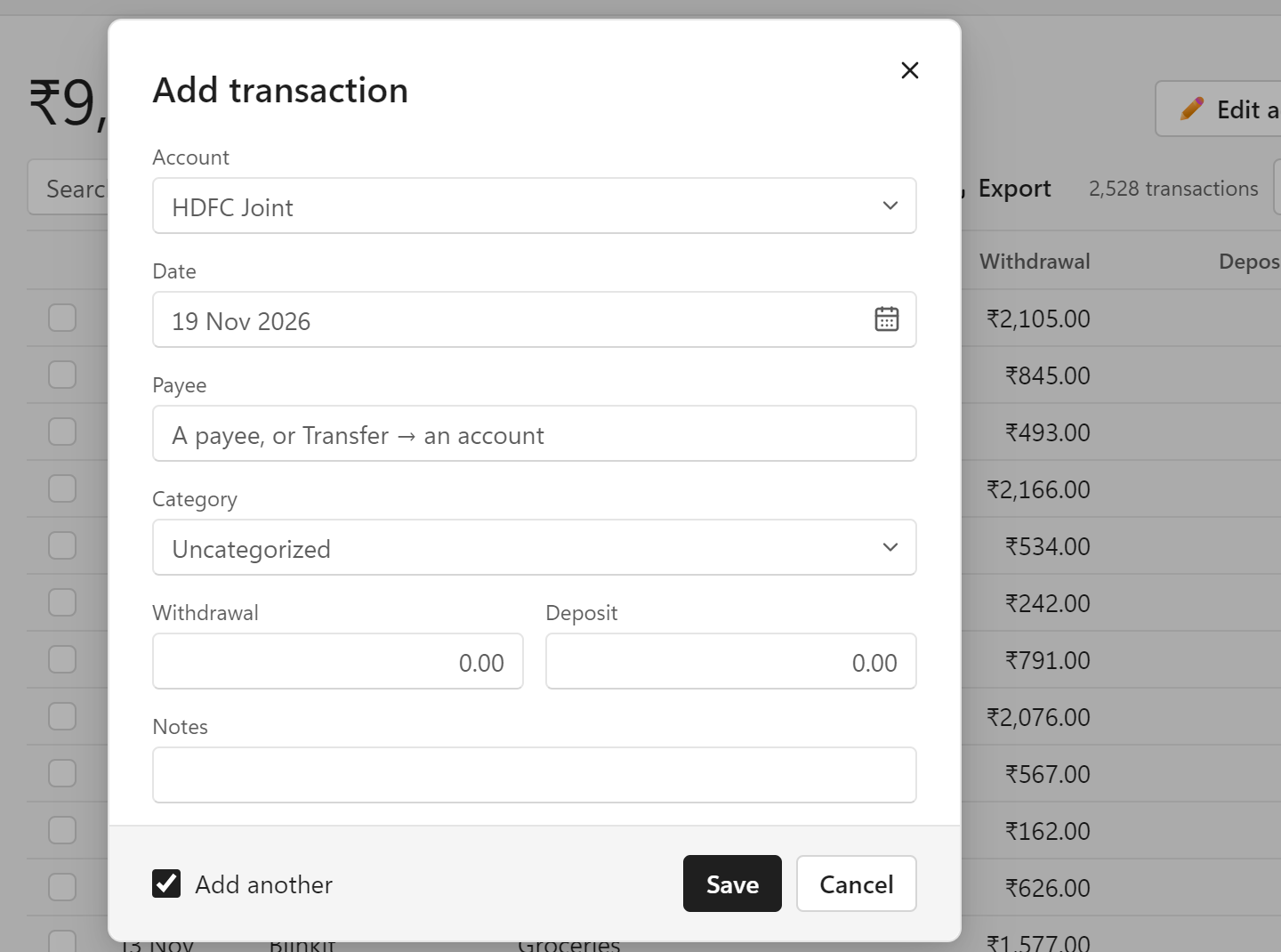
With Add another ticked, the form stays open for the next one.
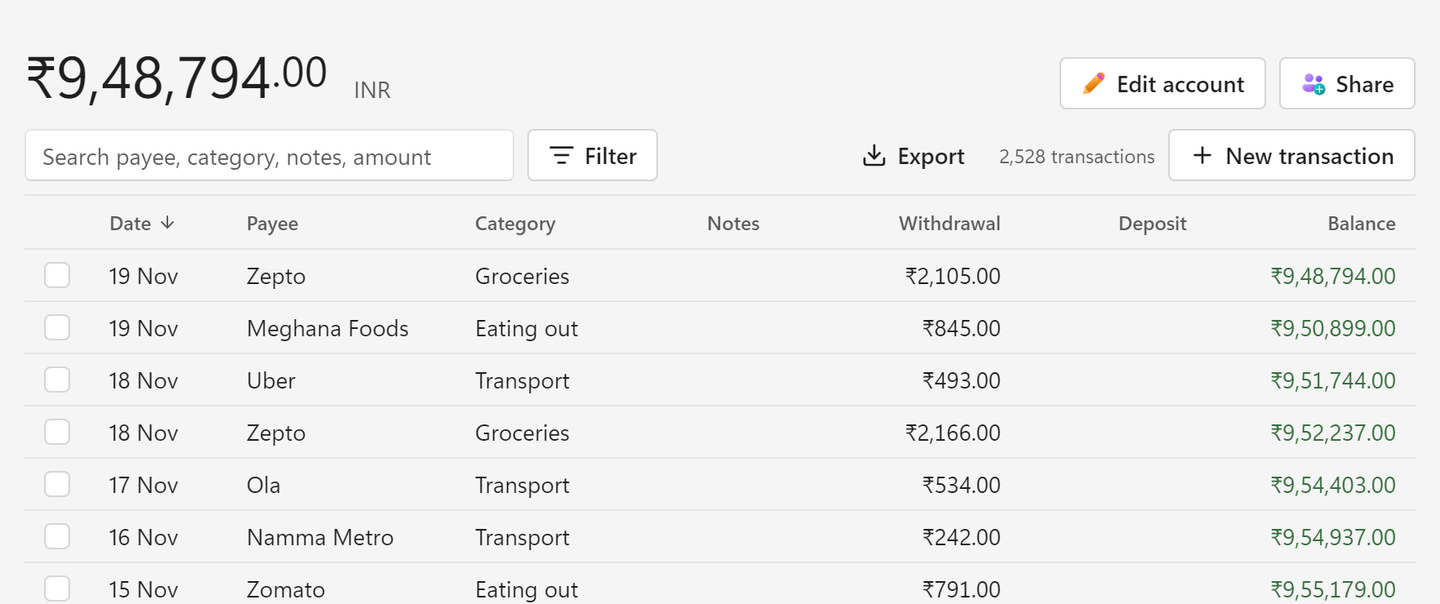
On an account’s page: click New transaction. A new row opens in the list; type into it and press Enter to save. A fresh row opens for the next one.
- Payee: who you paid or who paid you. Start typing and pick from the list, or type a new name. Miserly remembers each payee’s usual category and fills it in next time.
- Category: Groceries, Rent, Salary and so on. Leave it as Uncategorized if you’re not sure; the transaction goes to To categorize for later.
- Withdrawal or Deposit: money out or money in. On a credit card or a loan they’re called Charge and Payment.
- Notes: anything you want to remember.
Editing
Click any part of a row to change it in place: the date, payee, category, notes or amount. Right-click a row for Duplicate, Move up, Move down (within its day) and Delete. A delete can be undone from the message that appears.
Back-dating is fine: enter a transaction with last week’s date and the balances after it update.
Transfers
Moving money between your own accounts (paying a card bill, a SIP into a fund, an FD from savings) is a transfer, not spending. In the payee field, pick Transfer → and the other account. Miserly records it on both accounts and leaves your net worth unchanged.
A transfer between two of your bank accounts or cards has no category. A transfer from a bank account or card into an investment can take one, such as Investments, SIP: pick it the first time, and Miserly fills it in for the next transfer into that investment. A category in the Investments group keeps the transfer out of your spending and counts it in Reports’ Net invested; a spending category counts it as spending.
If the two accounts are in different currencies, it asks for the amount received too.
To categorize
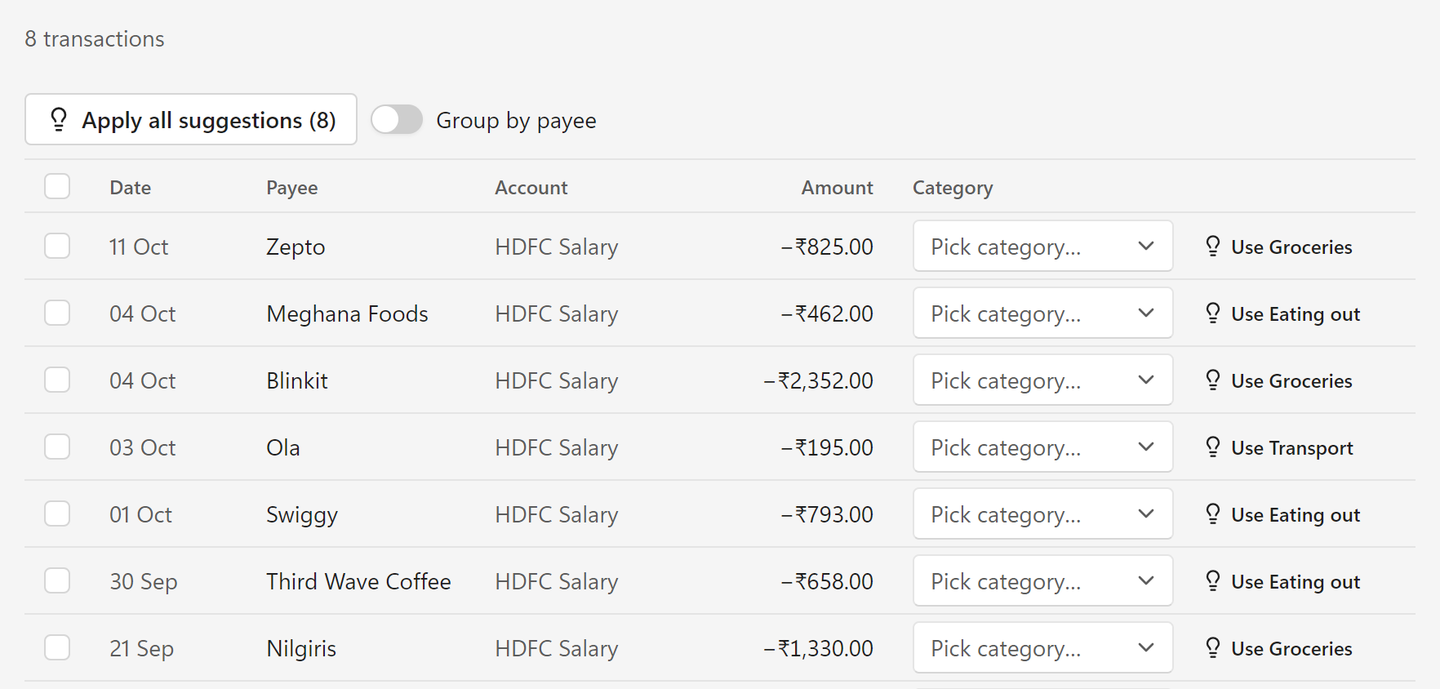
To categorize in the left-hand list shows every transaction without a category. Pick a category on each, or tick several, choose a category and click Categorize to set them together. Where Miserly can guess from the payee’s past entries, the row offers Use and the category; Apply all suggestions takes every guess at once.
Finding transactions
Each account’s page has a search box (payee, category, notes or amount) and a Filter button for type, category and dates. All transactions has the search box. On both, Export saves the rows you’re looking at as a CSV file you can open in Excel or Google Sheets.
AGPL-3.0. Built with AI assistance. © 2026 JAM Lab